Devices & printers
Change how your kiosk looks
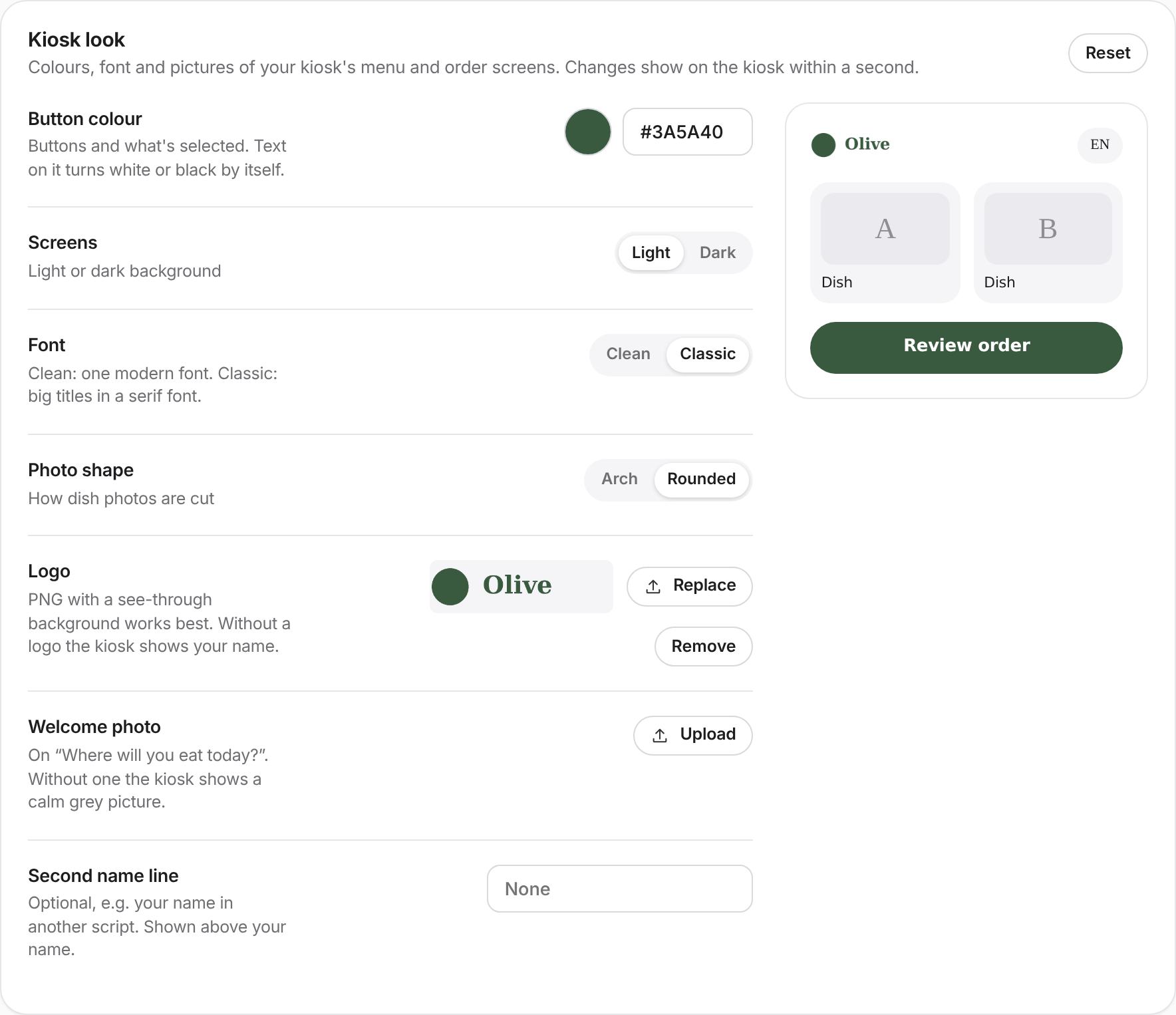
Open Settings → Kiosk in the back office. The Kiosk look card at the top has everything. Each change saves by itself and shows on your kiosks within a second.
What you can set
| Setting | What it changes | Starts as |
|---|---|---|
| Button colour | Buttons and what’s selected. The text on it turns white or black by itself. A colour that would disappear on the background isn’t accepted. | Ink (#111111) |
| Screens | Light or dark background | Light |
| Font | Clean: one modern font. Classic: big titles in a serif font. | Clean |
| Photo shape | How dish photos are cut: Arch or Rounded | Arch |
| Logo | Top of the menu and the welcome screen. A PNG with a see-through background works best. | Your restaurant’s name in text |
| Welcome photo | The photo on Where will you eat today? | A calm grey picture |
| Second name line | A line above your name, for example your name in another script | Nothing |
The preview on the right of the card shows your colours, font and photo shape. Tap Reset to go back to the standard look.
The number slip
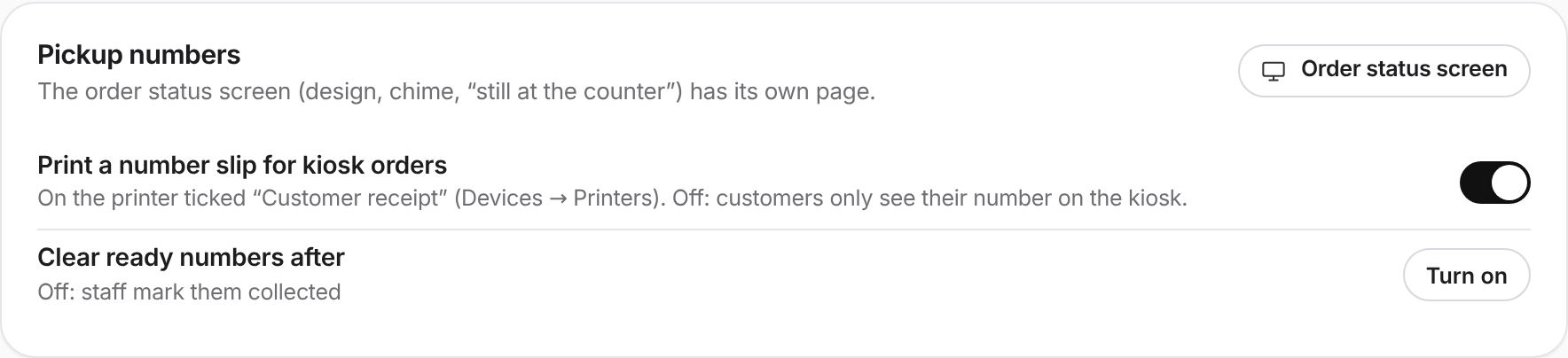
In Settings → Pickup numbers, Print a number slip for kiosk orders decides whether a kiosk order prints a small slip with the customer’s number. It prints on the printer that has Customer receipt ticked (Add a printer). Off: customers only see their number on the kiosk screen. It starts on. When Order number slip in Restaurant → Stations & routing is off, no number slips print at all.